

Watch: Quick MFA Overview
MFA adds a second check (beyond your password) to keep your account secure.
We require the Microsoft Authenticator app for sign-ins. Text messages may be used only as a temporary backup.
Note: Plan ~10 minutes and have both your computer and mobile phone handy.
Before You Begin
You will need the following:
- Your Microsoft 365 email and password
- A computer with a web browser
- Your mobile phone with internet access
Step 1 — Install Microsoft Authenticator (Required)
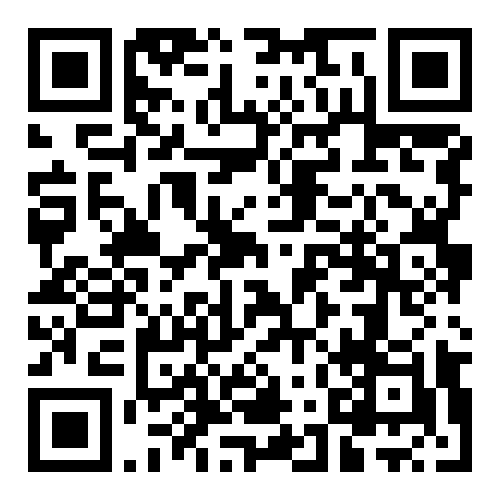
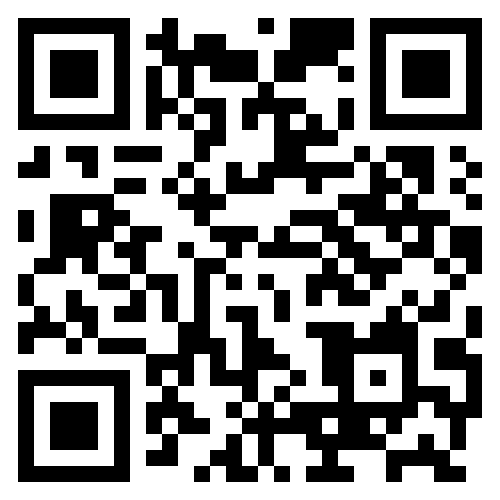
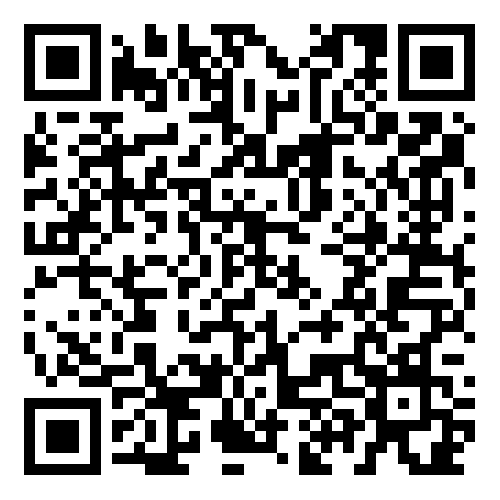
On your phone, open the Apple App Store or Google Play, search for Microsoft Authenticator, and install it. You can also scan the QR codes below with your mobile device.


⚠️ Do not delete the app after setup—you’ll use it for future approvals.
Step 2 — Register Your Phone with Your Account
On your computer:
- Sign in to Microsoft 365 (e.g., Office.com).
- Go to My Account → Security info (you may be prompted automatically).
- Choose Add sign-in method → Authenticator app and follow the prompts to display a QR code.
On your phone:
- Open Microsoft Authenticator → Add account → Work or school account.
- Scan the QR code shown on your computer.
- Approve the test notification when prompted.
Security tip: If you see number matching in the Authenticator prompt, enter the number shown on your computer. Only approve requests you initiate yourself.
Step 3 — Protect Your Access (Recovery/Transfer)
- Turn on cloud backup inside the Authenticator app (Settings → Cloud Backup/iCloud Backup) so you can restore if you get a new phone.
- If you plan to replace your phone, add the new phone first, confirm it works, then remove the old one.
Step 4 — (Optional) Install Additional Microsoft 365 Apps
Improve your mobile workflow by adding these apps from the app store:
- Outlook – email & calendar
- Microsoft 365 (M365) app – a hub/launchpad for Word, Excel, PowerPoint
- OneDrive – files & camera uploads
- Teams – chat & meetings
- Microsoft Copilot – AI assistant (if your organization licenses Copilot)
Use the iOS/Android specific links below to install.
Apple iOS

Android
OneDrive (Android)

Install within the M365 app.
Teams (Android)

Install within the M365 app.
Outlook (Android)
Install within the M365 app.
What to Expect After Setup
- You’ll tap “Approve” in Authenticator when signing in on new devices, after password changes, and occasionally for security checks.
- If you receive an unexpected prompt, deny it and notify IT immediately.
Troubleshooting
- No prompt appears: Open the Authenticator app to refresh; confirm internet connection.
- New phone: Add the new phone in Security info and verify before removing the old one.
- Lost phone: Use your backup method and contact support to help secure your account.
Need help? Contact our support team and we’ll get you set up.